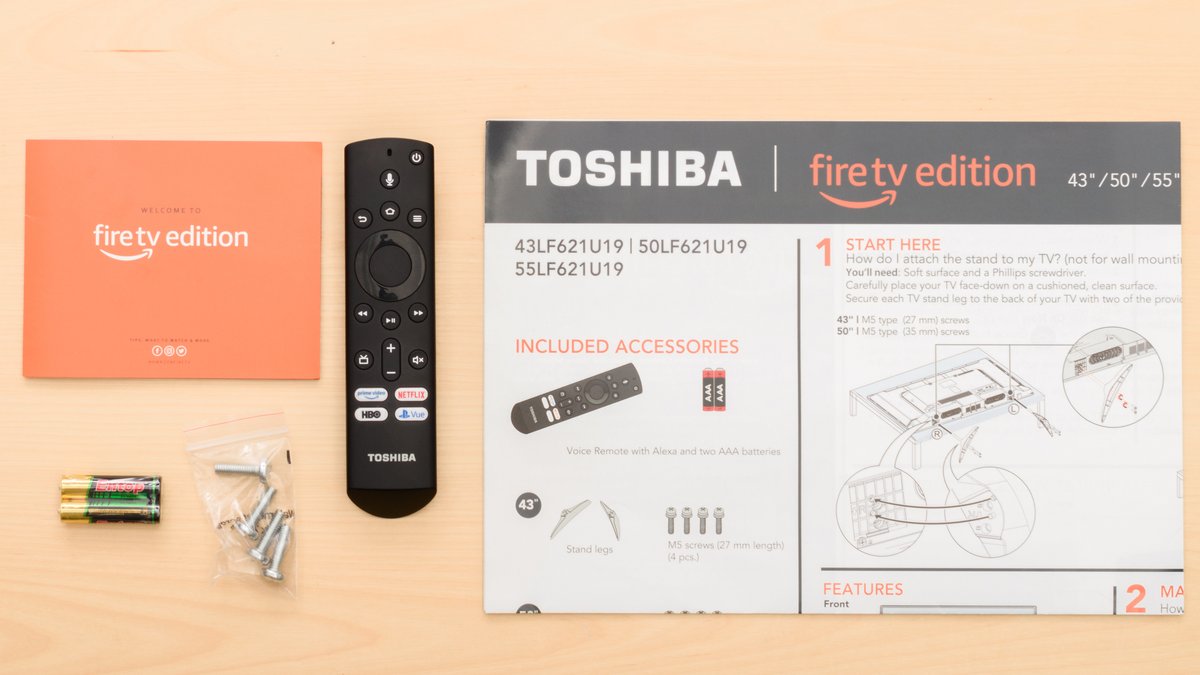
When you're ready to dive into a world of endless entertainment, your Toshiba Fire TV is often the gateway. It's more than just a television; it's a smart hub designed to simplify your viewing experience, put thousands of streaming options at your fingertips, and even integrate with your smart home — all thanks to its powerful, built-in Fire TV features and Alexa voice control. Understanding how to harness these capabilities is key to unlocking its full potential, transforming casual watching into a truly personalized entertainment journey.
At a Glance: Key Takeaways for Your Toshiba Fire TV
- Integrated Smart TV: Your Toshiba Fire TV comes with the Fire TV platform built-in, offering direct access to popular streaming apps like Netflix, Prime Video, Hulu, and more, without needing an extra streaming stick.
- Voice Control Power: The included Voice Remote with Alexa allows you to control your TV, search for content, launch apps, and even manage smart home devices using just your voice.
- Easy Setup: Getting your Toshiba Fire TV up and running is straightforward, involving stand assembly, power, remote pairing, and an internet connection.
- Connectivity Options: HDMI ports are your go-to for high-quality video and audio, but the TV also supports analog inputs, optical audio out, and a coaxial port for live TV antennas.
- Customizable Experience: Choose between a "Full" Fire TV experience with personalized recommendations or a "Basic" one for a simpler interface.
- Essential for Streaming: An active internet connection (Wi-Fi or Ethernet) and an Amazon account are crucial for most Fire TV features and Alexa voice services.
Welcome to the World of Toshiba Fire TV: More Than Just a Screen
In today's connected world, a TV isn't just a display for broadcast channels. It's a central entertainment portal, and your Toshiba Fire TV embodies this perfectly. With Amazon's Fire TV platform seamlessly integrated, you're getting a smart television that's ready to stream, game, and even listen to your commands right out of the box. Think of it as having a powerful streaming device already built right into your screen, ready to go.
This deep integration means fewer remotes, simpler navigation, and a more unified experience. Whether you're upgrading your main living room display or setting up a secondary screen for a bedroom or office, a Toshiba Fire TV brings a powerful suite of features designed for ease of use and instant entertainment. Curious to learn more about the broader ecosystem? You can find All about Toshiba Fire TV and what makes these sets stand out.
Your First Steps: Setting Up Your Toshiba Fire TV
Unboxing a new TV is exciting, and Toshiba Fire TVs are designed for a quick, hassle-free setup. Here’s a detailed walkthrough to get you from box to binge-watching in no time.
1. Assembling the Stands
Before you plug anything in, secure your TV to its base.
- Soft Landing: Lay the TV face-down on a clean, soft surface (like a blanket or the packing foam) to protect the screen.
- Identify Stands: Locate the two stands included in the box. They are typically labeled 'R' (right) and 'L' (left).
- Secure Attachment: Align each stand with the corresponding holes on the bottom of the TV. Use the provided screws (usually two per stand) and a Phillips screwdriver to firmly attach them. Don't overtighten, but ensure they're snug.
2. Powering Up and Pairing Your Remote
Once the stands are secure (or if you’re wall-mounting), it's time for power.
- Plug It In: Connect the power cord to your TV and then to a wall outlet.
- Insert Batteries: Open the back of your Voice Remote with Alexa and insert the two AAA batteries.
- First Power On: Press the Power button on your Voice Remote. Your TV should spring to life, and the remote should automatically pair. If it doesn't, follow the on-screen prompts, which usually involve pressing the Home button. If pairing issues persist, try re-inserting or replacing the batteries.
3. Connecting to the Internet
This is arguably the most crucial step, as your Toshiba Fire TV relies heavily on an internet connection for its smart features.
- Wi-Fi Connection: On the screen, you’ll be prompted to select your Wi-Fi network. Choose your network from the list and enter the password using the on-screen keyboard.
- Ethernet Option: For the most stable connection, you can connect an Ethernet cable directly from your router to the Ethernet port on the back of your TV. This bypasses Wi-Fi altogether.
- Why It's Essential: Without an internet connection, you won't be able to access streaming apps, use Alexa, or receive software updates. It’s the lifeline of your smart TV.
4. Choosing Your Fire TV Experience
Toshiba Fire TVs offer a choice for how you interact with the interface.
- Full (Recommended) Experience: This is the complete Fire TV experience, offering personalized recommendations, a wide array of apps, and all of Alexa's smart features. It requires an Amazon account. This is usually the best choice for most users, giving you access to virtually limitless content. You can discover more Fire TV apps and services with this option.
- Basic Experience: If you prefer a simpler interface focused solely on inputs and a limited selection of free streaming apps, you can opt for the Basic experience. This is ideal if you primarily use external devices (like a gaming console or cable box) and don't want the full smart TV features.
5. Scanning for Live TV Channels
If you plan to watch over-the-air broadcasts with an antenna or traditional cable (without a set-top box), you'll need to scan for channels.
- Connect Antenna/Cable: Plug your HD antenna or cable line into the COAXIAL port on the back of your TV.
- Initiate Scan: After initial setup, navigate to Settings > Live TV > Channel Scan and follow the prompts. The TV will search for available channels and add them to your channel list.
Navigating Your Fire TV Interface
The Fire TV interface is designed for intuitive browsing. It's a horizontal scrolling menu that prioritizes content discovery.
- Home Screen: This is your central hub, showcasing recommended content, recently used apps, and quick links to streaming services.
- Navigation Bar: At the top of the screen, you'll find categories like Home, Live, My Videos, Apps, and Settings. Use the directional pad on your remote to move between them.
- App Library: Select "Apps" to view all your installed applications. You can customize the order of these apps for quick access to your favorites.
- Search Function: Use the search icon (often a magnifying glass) or, even better, your Voice Remote to quickly find specific titles, genres, or actors across all your streaming services.
Mastering Voice Control with Alexa
One of the most powerful and enjoyable features of your Toshiba Fire TV is the integrated Alexa voice control. The Voice Remote isn't just for clicking; it's a microphone for your commands.
- How to Use It: Simply hold down the Voice button (the blue button with a microphone icon) on your remote and speak clearly. Release the button once you're done speaking.
- What Alexa Can Do:
- Content Search: "Find action movies," "Play The Office," "Search for comedies with Sandra Bullock."
- App Control: "Launch Netflix," "Open Hulu," "Go to Prime Video."
- TV Control: "Turn up the volume," "Switch to HDMI 2," "Go to channel 5."
- Information: "What's the weather?" "Tell me a joke," "How old is Tom Hanks?"
- Smart Home Control: (If integrated) "Turn on the living room lights," "Set the thermostat to 72 degrees."
- Amazon Account Required: To use Alexa Voice Service, you must have an active Amazon account linked to your Fire TV. This ensures a personalized and secure experience.
- Tips for Success: Speak naturally, but clearly. Avoid background noise when giving commands. You'll be surprised how quickly you start relying on voice commands over traditional button presses. For more detailed commands and tips, check out our guide on mastering Alexa voice commands.
Connecting Your Gear: Ports and Peripherals
Your Toshiba Fire TV comes equipped with various ports to connect external devices, from gaming consoles to soundbars. Understanding these ports helps you get the best performance.
Video Connections
- HDMI (High-Definition Multimedia Interface): This is your primary go-to for the best picture and sound quality. Your Toshiba Fire TV will have multiple HDMI ports.
- HDMI IN 1 (ARC): This specific HDMI port supports Audio Return Channel (ARC). This means it can send audio from your TV back to an ARC-enabled home theater receiver or soundbar using the same HDMI cable that brings video to the TV. This simplifies wiring significantly.
- Connecting Devices: Use HDMI for Blu-ray players, game consoles (PlayStation, Xbox, Nintendo Switch), cable boxes, or other streaming sticks (though you might not need one!).
- AV (Audio/Video - Composite): Sometimes labeled "Video In" with yellow, white, and red ports. These are for older devices like VCRs, older game consoles, or DVD players. The quality is significantly lower than HDMI, but it ensures compatibility with legacy hardware.
Audio Connections
- Digital Audio OPTICAL OUT: This port allows you to send high-quality digital audio from your TV to a soundbar, AV receiver, or home theater system. It's an excellent choice for a robust audio setup.
- Analog Audio IN: This is for connecting devices that output analog stereo audio, typically using red and white RCA cables.
- Connecting a Soundbar: For a significant upgrade to your TV's built-in sound, connecting an external soundbar is highly recommended. You can use either the HDMI (ARC) port or the Digital Audio OPTICAL OUT port for this. For a deeper dive into connectivity, explore our guide on connecting all your devices.
Live TV Antenna Connection
- COAXIAL (Antenna In): This is the port where you'll connect your HD antenna. After connecting, perform a channel scan (as described in the setup section) to find local over-the-air broadcasts.
Maximizing Your Viewing: Picture and Sound
While Fire TV features focus on the "smart" aspect, don't forget the fundamentals of great picture and sound.
Achieving Great Picture Quality
- Resolution Matters: Your Toshiba Fire TV will likely be at least 1080p (Full HD) or, even better, 4K Ultra HD. 4K offers significantly more pixels, leading to sharper, more detailed images, especially on larger screens.
- HDR (High Dynamic Range): Look for support for HDR10 or Dolby Vision. HDR content displays a wider range of colors, brighter highlights, and deeper shadows, resulting in a more realistic and impactful picture. When available, ensure your streaming service and content also support HDR for the best effect.
- Picture Settings: Dive into your TV's picture settings (usually found under the Settings menu) to fine-tune brightness, contrast, color, and sharpness. Often, preset modes like "Movie" or "Cinema" offer a more natural, color-accurate image than the vibrant "Standard" or "Vivid" modes. For more on this, check out how to get the best picture quality.
Enhancing Your Sound
- Built-in Speakers: While adequate for casual viewing, built-in TV speakers have limitations, especially in smaller form factors.
- External Audio: For a truly immersive experience, invest in an external sound system. A soundbar is a popular and effective upgrade, offering clearer dialogue and richer bass. For a full home theater setup, connecting to an AV receiver with surround sound speakers via the Digital Audio OPTICAL OUT or HDMI (ARC) port is ideal.
Beyond Streaming: Smart Home Integration
Your Toshiba Fire TV, powered by Alexa, isn't just for movies and shows. It can become a central part of your smart home ecosystem.
- Alexa as a Hub: Since Alexa is built-in, your TV can act as a control point for any Alexa-compatible smart home devices you own.
- Voice Commands for Smart Home:
- "Alexa, dim the living room lights."
- "Alexa, show me the front door camera." (Requires compatible smart cameras that integrate with Fire TV).
- "Alexa, lock the back door."
- Seamless Control: This integration means you don't need to reach for your phone or a separate smart speaker to control your smart home devices while you're watching TV. It's all just a voice command away. For deeper insights into integrating your devices, read our guide on integrating smart home devices.
Wall Mounting Your Toshiba Fire TV
Free up space and achieve a sleek look by wall-mounting your Toshiba Fire TV. This requires specific steps and considerations.
1. Remove the Stands
- Before mounting, ensure the TV stands are completely removed. Unscrew them from the bottom of the TV.
2. VESA Compatibility
- VESA (Video Electronics Standards Association): This is a standard for TV mounting brackets. Your Toshiba Fire TV will have a specific VESA pattern, which refers to the spacing of the mounting holes on the back of the TV.
- Common Patterns for Toshiba Fire TVs:
- 32" Models: Typically use a 100 × 100 mm pattern, requiring M4 × 12 mm screws (4 pieces).
- 43" Models: Often use a 400 × 200 mm pattern, requiring M6 × 35 mm screws (4 pieces).
- Screws are NOT Included: Remember, wall-mount screws are almost never included with the TV. You'll need to purchase a wall mount that is compatible with your TV's VESA pattern and weight, and the correct screw size and length.
3. Secure Installation
- Weight Support: Always ensure your chosen wall mount is rated to support the weight of your TV.
- Use All Holes: It's critical to use all four VESA mounting holes on the back of the TV for a secure and safe attachment to the wall bracket.
- Professional Help: If you're unsure about drilling into walls or finding studs, consider hiring a professional for installation.
Troubleshooting Common Hiccups
Even the smartest TVs can encounter small issues. Here are quick fixes for common problems:
- Remote Not Responding:
- Check or replace the AAA batteries.
- Ensure there are no obstructions between the remote and the TV.
- If the remote de-pairs, press and hold the Home button for about 10 seconds to re-pair it.
- No Internet Connection:
- Restart your router and modem.
- Go to Settings > Network on your TV and try reconnecting to your Wi-Fi network, ensuring you enter the password correctly.
- If using Ethernet, check the cable connection.
- App Not Working/Crashing:
- Try restarting the app: Go to Settings > Applications > Manage Installed Applications, select the problematic app, and choose "Force Stop." Then reopen the app.
- If issues persist, try "Clear Data" or "Clear Cache" for the app (this will log you out and clear settings for that specific app).
- Alexa Not Hearing You:
- Ensure you're holding down the Voice button on the remote while speaking.
- Speak clearly and directly into the remote.
- Check for excessive background noise.
- No Picture/Sound from an External Device:
- Ensure the device is powered on.
- Verify the HDMI (or AV) cable is securely connected to both the TV and the device.
- Use the TV remote to select the correct input source (e.g., HDMI 1, HDMI 2). The physical Power/Input button on the back of the TV can also cycle through inputs with a short press.
Smart Buying Considerations for Your Next Toshiba Fire TV
If you're in the market for a new Toshiba Fire TV, keeping these points in mind will ensure you get the perfect fit for your needs:
- Screen Size: This is paramount. Measure your room and viewing distance. A 32-inch model is great for smaller spaces like a kitchen or bedroom, while a 43-inch or larger model suits living rooms.
- Resolution: Aim for at least 1080p (Full HD). For larger screens (43-inch and up) and future-proofing, 4K Ultra HD provides a noticeably sharper image.
- HDR Support: For richer colors and better contrast, look for HDR10 or Dolby Vision compatibility. This is increasingly standard on 4K TVs.
- Ports: Check the number of HDMI ports you need for your devices (game consoles, soundbars, cable boxes, etc.). Ensure at least one HDMI (ARC) for streamlined audio. Consider if you need legacy AV inputs.
- Sound Quality: While external soundbars are highly recommended, check reviews for the TV's built-in sound. Analog Audio IN and Digital Audio OPTICAL OUT are good indicators of external audio support.
- Build Quality: A sturdy frame and stand (metal over plastic for durability) are good indicators. The screen material (glass or plastic) also impacts durability. The remote will typically be plastic, but look for solid button feel.
- Software Updates: Toshiba Fire TVs benefit from regular software updates from Amazon, ensuring the interface remains fresh, secure, and gains new features over time. This is a built-in advantage.
Making the Most of Your Toshiba Fire TV
Your Toshiba Fire TV is a versatile piece of technology designed to bring entertainment and smart home convenience into your living space. By understanding its setup, navigating its intuitive Fire TV interface, and leveraging the power of Alexa voice control, you unlock a seamless and enjoyable experience. Whether you're streaming the latest blockbuster, listening to music, playing games, or managing your smart home, these features work together to create a cohesive and user-friendly entertainment hub. Keep your software updated, explore new apps, and don't hesitate to experiment with Alexa's capabilities – your Toshiba Fire TV is ready to deliver.