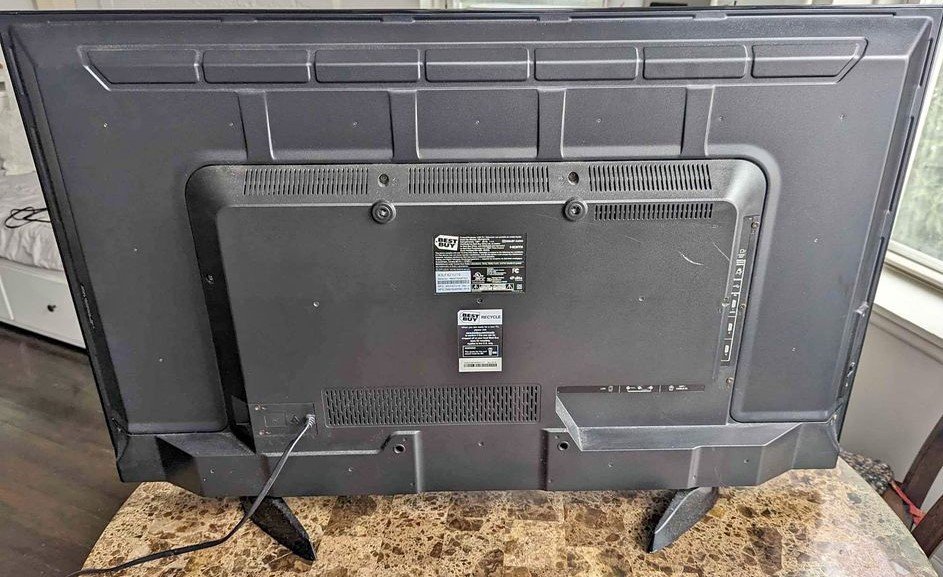
Your Toshiba Fire TV is more than just a screen; it's a gateway to endless entertainment, news, and streaming content. So, when it acts up, it's not just an inconvenience – it's a disruption to your daily unwind. You've landed here because you're grappling with Toshiba Fire TV Troubleshooting & FAQs, and you need clear, actionable advice to get your device back in prime working order.
Consider this your comprehensive, no-nonsense guide, crafted by an expert who understands the frustration of a unresponsive remote or a stubbornly blank screen. We're cutting through the tech jargon to give you practical steps you can take right now, along with insights into why these issues occur.
At a glance: Quick Fixes for Your Toshiba Fire TV
- The universal restart: Unplug your TV and router for at least one minute. It solves an astonishing number of problems.
- Check the basics: Power cords, HDMI connections, and fresh remote batteries are often the culprits.
- Wi-Fi woes: Your internet connection is crucial. Restart everything, forget and reconnect, or even try an Ethernet cable.
- App behaving badly? Clear its cache or reinstall it entirely.
- Factory reset as a last resort: Be prepared to set up your TV anew, but it's a powerful problem-solver.
When Your Toshiba Fire TV Just Won't Play Ball: A Troubleshooting Journey
Let's dive into the most common frustrations and walk through the fixes, step by step. We'll start with the simplest solutions and gradually move to more advanced options.
The Dreaded Black Screen: When Your TV Won't Turn On or Shows Nothing
Few things are more disheartening than hitting the power button and being met with silence or a blank void. Here's how to tackle it.
"My Toshiba Fire TV Won't Turn On At All!"
This is typically a power issue. Don't panic; let's check the fundamentals:
- Verify Power Connections: Is the power cord securely plugged into the back of your Toshiba Fire TV? Trace it to the wall outlet—is it snug there too? A loose connection is a surprisingly common culprit.
- Try a Different Outlet: Plug your TV into another electrical outlet. If it suddenly springs to life, your original outlet might be faulty, or perhaps controlled by a light switch that's off.
- Bypass Surge Protectors: If you're using a power strip or surge protector, try plugging the TV directly into a wall outlet. Sometimes, these accessories can malfunction.
- Press the TV's Power Button: Don't just rely on the remote. Locate the physical power button on the TV itself (often on the bottom edge or back panel, sometimes a small multi-directional joystick). Press it to rule out a remote issue.
- The "Red Light" Blinking: If your TV has a red light indicating standby and it's flashing or not turning on, perform a "power cycle." Unplug the TV from the power outlet for at least 5 minutes. While it's unplugged, press and hold the physical power button on the TV (not the remote) for 30 seconds. This drains residual power. Then plug it back in.
"My TV is On, but the Screen is Blank (No Picture)"
You hear sound, or see a backlight, but no image. This points to a video signal problem.
- Check HDMI Connections: Ensure all HDMI cables connected to your Toshiba Fire TV are firmly plugged in at both ends – the TV and the external device (cable box, game console, soundbar, etc.).
- Try Different HDMI Ports: Your Toshiba Fire TV likely has multiple HDMI inputs. Switch the cable to a different HDMI port on the TV. Sometimes a single port can go bad.
- Swap HDMI Cables: HDMI cables can get damaged internally. If you have a spare, try swapping it out. For optimal performance, especially with 4K content, ensure you're using a high-speed HDMI cable.
- Verify Input Source: Using your Toshiba Fire TV remote, press the "Input" or "Source" button. Cycle through the available inputs (HDMI 1, HDMI 2, TV, etc.) to ensure you're on the correct one for your device.
Wi-Fi Woes & Network Nightmares
A Smart TV without internet is, well, just a TV. Connectivity issues are incredibly frustrating but often manageable.
"My Toshiba Fire TV Can't Connect to Wi-Fi" or "The Wi-Fi Keeps Dropping"
Your network is the lifeline for your Fire TV experience.
- Restart Your Router and Modem: This is the golden rule of network troubleshooting. Unplug both your Wi-Fi router and your internet modem from power for at least 60 seconds. Plug the modem back in first, wait for its lights to stabilize, then plug in the router and wait for its lights to stabilize.
- Restart Your Toshiba Fire TV: Unplug your TV from the power outlet for a full minute, then plug it back in. A full power cycle can resolve temporary glitches.
- Check Network Status on TV: Navigate to
Settings > Networkon your Toshiba Fire TV. Look at the status for your Wi-Fi connection. Does it show available networks? Is your network listed? - Forget Network and Reconnect: If your TV is trying to connect but failing, or if the connection is unstable, tell it to "forget" your network. In
Settings > Network, select your Wi-Fi network and choose "Forget This Network." Then, search for networks again and reconnect, re-entering your password carefully. - Move Router Closer (or TV Closer): Physical distance and obstructions (walls, large appliances) can weaken a Wi-Fi signal. If possible, move your router closer to your Toshiba Fire TV or vice-versa.
- Reduce Interference: Other devices operating on the 2.4 GHz band (cordless phones, microwaves, Bluetooth devices) can interfere with Wi-Fi. Try turning off nearby electronics temporarily.
- Use an Ethernet Cable: This is the most reliable solution for persistent Wi-Fi problems. If your Toshiba Fire TV has an Ethernet port, connect it directly to your router using an Ethernet cable. This bypasses Wi-Fi entirely and provides a stable, fast connection.
"Home is Currently Unavailable" Message
This usually means your TV can't reach Amazon's Fire TV servers, almost always due to a network problem.
- Run Through Wi-Fi Troubleshooting Steps: Revisit the previous section on Wi-Fi connectivity. The root cause is almost certainly there.
- Check Internet on Other Devices: Can your phone or computer connect to the internet using the same Wi-Fi network? If not, the problem is with your internet service provider or router, not just your TV.
- Try a Different Network (Mobile Hotspot): As a diagnostic step, you could try connecting your Toshiba Fire TV to a mobile hotspot from your phone. If it connects and the home screen appears, you've confirmed the issue lies with your primary home network.
Sound Struggles: When Your Ears Don't Get the Message
A great picture is only half the experience. Here's what to do when your audio goes missing or gets out of sync.
"No Sound from My Toshiba Fire TV"
Silence isn't golden when you're trying to watch a show.
- Check Mute and Volume: It sounds obvious, but ensure your TV isn't muted and that the volume is turned up sufficiently. Look for a mute icon on the screen.
- Verify Audio Cables: If you're using external speakers, a soundbar, or an AV receiver, check all the audio cables connected to them and to the TV. Unplug and reconnect them to ensure a secure fit.
- Check TV's Audio Output Settings: Go to
Settings > Display & Sounds > Audio. Ensure the correct audio output is selected. If you're using internal TV speakers, make sure "TV Speakers" or "Internal Speakers" is chosen. If using an external device, select the appropriate option (e.g., HDMI ARC, Optical, External Audio System). - Restart Connected Devices: If you have a soundbar or receiver, power cycle it along with your TV.
- Test Different Content/Apps: Does the sound problem affect all apps and inputs, or just one? If it's isolated to a single app, the problem might be with that app.
- Factory Reset (Last Resort): If all else fails, a factory reset can resolve deep-seated audio software issues. Remember, this will erase all your settings and data.
"Audio and Video Are Out of Sync" (AV Sync)
When lips move a second before the words, it's incredibly distracting.
- Use AV Sync Tuning: Your Toshiba Fire TV has a built-in tool for this. Go to
Settings > Display & Sounds > Audio > AV Sync Tuning. Follow the on-screen instructions to adjust the delay. - Try a Different HDMI Cable: Sometimes a lower-quality or damaged HDMI cable can contribute to sync issues, especially when processing complex audio formats.
- Check External Device Settings: If the audio is coming from an external device (e.g., soundbar or receiver), check its settings for any audio delay options.
- Restart Everything: A simple power cycle of your TV, soundbar/receiver, and source device can often re-sync things.
Remote Control Reluctance
Your remote is your command center. When it's not responding, your Toshiba Fire TV effectively becomes unusable.
"My Toshiba Fire TV Remote Isn't Working"
From sticky buttons to complete unresponsiveness.
- Check/Replace Batteries: This is the most common fix. Even if they're "newish," try a fresh set of alkaline batteries. Ensure they're inserted correctly.
- Clear Obstructions: Make sure there's nothing blocking the line of sight between your remote and your TV. While Fire TV remotes are often Bluetooth, direct line of sight can still help, especially during pairing.
- Re-pair the Remote: For most Fire TV remotes, pressing and holding the Home button for 10 seconds will put it into pairing mode. Your TV should then confirm the connection. If that doesn't work, try removing the batteries, waiting a few seconds, reinserting them, and then holding the Home button.
- Trouble with Voice Control: If voice commands aren't working but other buttons are, first check your Wi-Fi connection (voice commands require internet). Ensure there are no sources of interference (like other active Bluetooth devices) near the remote while you're trying to use voice.
- Remote Factory Reset (Advanced): If none of the above work, you can perform a factory reset on the remote itself. This typically involves removing the batteries, then holding down specific buttons (e.g., Back + Menu + Left directional pad for 10-15 seconds) while reinserting the batteries. Check your remote's specific instructions for the exact sequence.
App-Specific Ailments & Performance Problems
When a specific app misbehaves or your entire TV feels sluggish.
"An App Isn't Working Correctly" or "My Toshiba Fire TV is Slow"
Apps crash, freeze, or refuse to load. Over time, your TV might also feel less snappy.
- Restart the TV: A quick power cycle (unplug for 60 seconds) can often clear up app glitches and improve overall performance.
- Clear App Cache: This is the go-to fix for many app issues. Navigate to
Settings > Applications > Manage Installed Applications > [Select the problematic app] > Clear Cache. This removes temporary data that might be corrupted, without deleting your login information. - Force Stop the App: After clearing the cache, it's often a good idea to also select "Force Stop" for the app in the same menu.
- Uninstall and Reinstall the App: If clearing the cache doesn't work, try uninstalling the app (
Settings > Applications > Manage Installed Applications > [App Name] > Uninstall) and then reinstalling it from the Appstore. This ensures you have a fresh, uncorrupted installation. - Remove Unused Applications: Just like on a phone or computer, too many installed apps can slow down your Toshiba Fire TV. Regularly delete apps you no longer use from
Settings > Applications > Manage Installed Applications. - Check for Firmware Updates: Ensure your TV's operating system is up-to-date. Sometimes app issues are resolved with a TV software update.
Stuck on the Fire TV Symbol or Loading Screen
This can be a stubborn issue, signaling deeper software or hardware problems.
- Power Cycle the TV: Unplug your Toshiba Fire TV for at least one minute, then plug it back in.
- Use the Original Power Cord/Adapter: Ensure you are using the power supply that came with your Toshiba Fire TV. Generic or underpowered adapters can cause boot issues.
- Give it Time: Sometimes, especially after an update, the TV might take longer to boot. Let the device sit for 25 minutes (while turned on) or until the screen changes.
- HDMI Check:
- Try plugging the Fire TV directly into the TV, bypassing any HDMI adapters, extenders, or hubs.
- Try a different HDMI port on your TV.
- Ensure you are using a high-speed HDMI cable.
- Test the Toshiba Fire TV device on a different TV if possible, to rule out your TV as the source of the problem.
- Confirm your TV is HDCP-compliant (High-bandwidth Digital Content Protection). Most modern TVs are, but check your TV's manual if unsure. HDCP is required for protected content.
- Factory Reset (Specific Method): If the TV is stuck on the logo and you can't access the settings menu, you might need to perform a factory reset using the remote:
- With the TV on and displaying the Fire TV logo, press and hold the Back button and the Right directional pad (the right side of the navigation ring) simultaneously for 10-15 seconds.
- A message might appear asking if you want to reset. Confirm if prompted. This can be tricky if the screen isn't fully responsive.
Common Error Codes and What They Mean
While Fire TV doesn't always show explicit error codes, some general categories might pop up.
- Code 100-series (e.g., 100, 101, 102): Network connectivity issues. Your TV can't reach the internet or specific servers. (Restart router/modem, check Wi-Fi).
- Code 200-series (e.g., 201, 202): Server problems. The service you're trying to access (Amazon, Netflix, Hulu) might be down or experiencing issues. (Check service status online, try again later).
- Code 300-series (e.g., 301, 302): App-specific issue. A problem within a particular application. (Clear app cache, uninstall/reinstall app).
- Code 400-series (e.g., 401, 402): Payment or subscription problem. Your payment method might be expired, or your subscription for a service isn't active. (Check account details on the service's website).
- Code 500-series (e.g., 501, 502): Internal device issue. A problem with the TV's operating system or hardware. (Restart TV, check for updates, factory reset).
General Solution for Error Codes: The first step is almost always to restart your Toshiba Fire TV and your router. Then, check your internet connection.
Advanced Troubleshooting: Firmware Updates and Factory Resets
Sometimes, you need to go a bit deeper to fix persistent problems.
Updating Your Toshiba Fire TV's Firmware
Software updates bring new features, improve performance, and fix bugs. Always ensure your TV is running the latest version.
- Check for Updates: Navigate to
Settings > My Fire TV > About > Check for Updates. - Install Updates: If an update is available, your TV will download and install it. This process can take some time and will require your TV to restart. Do not unplug the TV during an update.
Factory Resetting Your Toshiba Fire TV
This is the nuclear option, used when all other troubleshooting fails. A factory reset will wipe all your personal data, settings, installed apps, and preferences, returning your TV to its original out-of-the-box state. You'll need to set it up again from scratch.
- Access Reset Option: Go to
Settings > My Fire TV > Reset to Factory Defaults. - Confirm Reset: You'll be asked to confirm, as this is a permanent action.
- Wait for Reset: The TV will restart and go through a setup process similar to when you first bought it.
Remember, a factory reset is powerful but also time-consuming because you'll have to re-download apps and sign into all your services again. Only use it when truly necessary. For more details on the capabilities and features of your device, you might want to learn more about Toshiba Fire TV.
Identifying Your TV Model & Contacting Support
When all your efforts haven't yielded a fix, it's time to call in the professionals.
Knowing Your Toshiba Fire TV Model
Before contacting support, have your TV's model number handy. This is crucial for them to provide accurate assistance.
- Look on the Back of the TV: There's usually a label with the model number and serial number.
- Check in Settings: Go to
Settings > My Fire TV > About > TV. The model name should be listed there.
Contacting Support
For Toshiba Fire TV devices, support can sometimes be a joint effort between Toshiba and Amazon (since the Fire TV OS is Amazon's).
- Toshiba Support: Visit the official Toshiba support website for your region. They'll have contact numbers, chat options, and knowledge bases specific to your TV's hardware.
- Amazon Fire TV Support: For issues specifically related to the Fire TV operating system, apps, or your Amazon account, Amazon's support channels for Fire TV devices are a great resource.
What to Have Ready:
- Your TV's model number and serial number.
- Approximate purchase date and proof of purchase (if within warranty).
- A clear description of the problem and all the troubleshooting steps you've already tried.
Don't Give Up: A Final Word of Encouragement
Dealing with tech issues can be incredibly frustrating, but most Toshiba Fire TV problems have a solution. By systematically working through these troubleshooting steps, you'll likely pinpoint the cause and get your entertainment hub back in action. Remember, patience and a methodical approach are your best tools. Here's to clear screens and crisp sound!