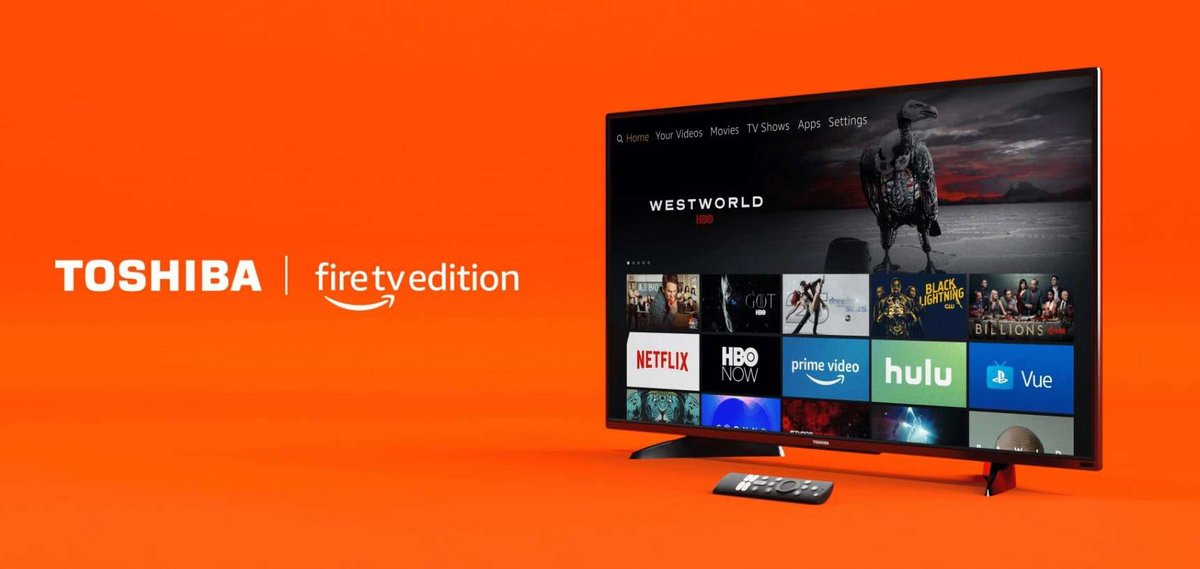
Unboxing a brand-new TV is always an exciting moment, a gateway to countless hours of entertainment. And when that TV is a Toshiba Fire TV, you're not just getting a display; you're gaining an integrated smart hub designed to make your streaming life effortlessly simple. But before you dive into that cinematic experience or get lost in your favorite series, you first need to tackle the initial setup.
This guide will walk you through every step of Setting Up Your Toshiba Fire TV, from the moment you cut the tape on the box to the instant you're streaming your first show. We’ll cut through jargon, offer practical advice, and ensure your journey from unboxing to seamless streaming is as smooth as possible.
At a Glance: Your Toshiba Fire TV Setup Checklist
- Unbox Carefully: Identify all components (TV, remote, power cord, batteries).
- Pick Your Spot: Choose a location with power access and good Wi-Fi.
- Plug In: Connect the power cord securely to the TV and outlet.
- Remote Ready: Insert batteries and pair your remote by holding the Home button.
- Get Online: Connect to your Wi-Fi network or use an Ethernet cable.
- Amazon Account: Sign in or create an Amazon account to access Fire TV features.
- Personalize: Adjust language, updates, and other basic settings to your liking.
- Troubleshoot: Learn quick fixes for common power, remote, or internet issues.
The Grand Unveiling: Unboxing Your New Toshiba Fire TV
The journey begins the moment you bring that box into your home. Think of this stage as laying the groundwork for your entire entertainment experience. A little mindfulness now can save you headaches later.
What's in the Box? A Quick Inventory
Carefully open your Toshiba Fire TV box. You should find:
- The Toshiba Fire TV: Of course! Handle it gently, preferably with two people for larger models, holding it by its sides.
- Remote Control: Your primary tool for navigating the Fire TV interface.
- Power Cord: Essential for bringing your TV to life.
- Batteries: Usually AAA, for your remote.
- User Manual/Quick Start Guide: Handy for specific model details, though this guide aims to be more comprehensive.
- Stand/Feet: For tabletop placement, often requiring a screwdriver for attachment.
- Warranty Information: Keep this in a safe place.
Take a moment to ensure all components are present and undamaged. If anything looks amiss, contact Toshiba support before proceeding.
Choosing the Perfect Spot for Your Entertainment Hub
Where you place your Toshiba Fire TV isn't just about aesthetics; it impacts performance and viewing comfort. Consider these factors:
- Power Source: Your TV needs to be within easy reach of a wall outlet. Avoid using extension cords or power strips if possible, or ensure they are heavy-duty and grounded if necessary.
- Wi-Fi Range: For optimal streaming, your TV should be relatively close to your Wi-Fi router. A strong, stable Wi-Fi signal prevents buffering and ensures smooth navigation. If your router is far, consider a Wi-Fi extender or, even better, a wired Ethernet connection.
- Viewing Angle & Glare: Position the TV where you have a clear line of sight from your primary viewing areas. Be mindful of windows or light sources that might cause screen glare.
- Ventilation: TVs generate heat. Ensure there's adequate space around the TV, especially at the back, for proper airflow. Avoid placing it in enclosed cabinets without proper ventilation.
- Stability: Whether on a stand or wall-mounted, ensure the TV is secure and stable to prevent accidental tipping. If using the included stand, attach it firmly according to the instructions.
Once you've found the perfect spot, you're ready to bring your Toshiba Fire TV to life.
Powering Up: From Cord to Cosmos
This is where your new Toshiba Fire TV gets its spark. Connecting the power cable might seem obvious, but a secure connection is key to avoiding frustrating power interruptions or setup delays.
Plugging In: A Step-by-Step Guide
- Locate the Power Cable: You'll find a standard three-prong plug on one end and a specific connector on the other, designed to fit into your TV.
- Connect to the TV: On the back of your Toshiba Fire TV, you'll see a designated power input port. It's usually clearly labeled. Firmly insert the connector end of the power cable into this port. You should feel a solid click or resistance, indicating it's seated properly.
- Connect to the Outlet: Insert the plug end into an accessible wall power outlet. If you're using a power strip, ensure it's turned on and functioning.
- First Boot: With power connected, look for a small power button on the TV itself (often on the bottom edge or side) or use the power button on your remote control. Press it once.
- Watch for the Logo: Within a few seconds, the Toshiba Fire TV logo should appear on the screen, signaling that your device is powered on and beginning its boot-up sequence. This is your first visual confirmation that everything is working!
Pro Tip: Always connect the cable to the TV first before plugging it into the wall. This minimizes the chance of static discharge or accidental power surges while handling the TV.
Remote Control Readiness: Your Command Center
Your Toshiba Fire TV remote is more than just a clicker; it's your primary interface for navigating menus, launching apps, and controlling playback. Getting it paired correctly is crucial for the setup process.
Inserting Batteries and Initial Power-Up
- Locate the Battery Compartment: On the back of your remote, slide down or press the latch to open the battery compartment.
- Insert Batteries: Insert the included batteries (usually AAA) according to the polarity markings (+ and -) inside the compartment. Incorrect insertion will prevent the remote from working.
- Close the Compartment: Securely close the battery compartment cover.
- Confirm TV Power: Ensure your Toshiba Fire TV is already powered on and displaying the Toshiba Fire TV logo or a setup screen.
The Crucial Pairing Process
The Toshiba Fire TV remote uses Bluetooth for communication, meaning it needs to be "paired" with the TV to work. This isn't like an old-school IR remote; line-of-sight isn't required once paired, but the initial pairing needs specific steps.
- Hold the Home Button (TV Screen Prompt): Once your TV is powered on, it will typically display a prompt on the screen instructing you to press and hold the "Home" button on your remote.
- Activate Pairing Mode: Press and hold the Home button (the one with the house icon) on your remote for at least ten seconds. Don't just press it; keep it held down.
- Wait for Confirmation: Continue holding the button. The TV screen will usually show a message indicating that it's searching for the remote, and then a confirmation message once the connection is established. This can take a few more seconds.
- Test It Out: Once paired, try navigating the on-screen prompts using the remote's directional pad. If it responds, you're good to go!
What if it doesn't pair?
- Check Batteries: Are they inserted correctly and fully charged?
- Proximity: Ensure the remote is close to the TV during pairing.
- Restart TV: Sometimes a quick power cycle (unplugging for 30 seconds, then plugging back in) can resolve minor glitches.
- Replace Batteries: If they were included and potentially old, try fresh ones.
- Repeat the Process: Sometimes it takes a couple of attempts.
This pairing procedure is also essential if you ever need to use a replacement remote or if your remote loses connection for some reason.
Bridging Worlds: Connecting to the Internet
An internet connection is the beating heart of your Toshiba Fire TV. Without it, you can't access streaming services, download apps, get software updates, or utilize Alexa's voice commands. Think of it as the lifeline to all the entertainment you've been waiting for.
Why Your Internet Connection Matters
Your Toshiba Fire TV relies heavily on an internet connection for almost all its core functions:
- Streaming Content: Netflix, Hulu, Prime Video, Disney+, YouTube – none of these work without internet.
- App Downloads & Updates: To get new apps or keep existing ones current, you need to be online.
- Alexa Voice Control: All voice commands are processed through Amazon's servers, requiring an active internet link.
- Software Updates: Toshiba and Amazon regularly release software updates for performance improvements, new features, and security patches.
- Personalized Recommendations: Your Fire TV uses your viewing habits and online data to offer tailored suggestions.
Navigating to Network Settings: Your Connection Hub
- Power On and Navigate: Ensure your Toshiba Fire TV is on and you're on the initial setup screen or the home screen if you've already completed basic language selection.
- Access Settings: Using your remote, navigate to the "Settings" icon. This is typically located in the top-right corner of the home screen, often represented by a gear or cogwheel icon.
- Select "Network": Scroll down through the settings menu and select the "Network" option. This is where all your internet connectivity options reside.
Wi-Fi vs. Ethernet: Choosing Your Path to Connectivity
Here, you'll be presented with two primary options: Wi-Fi (wireless) or Ethernet (wired). Each has its pros and cons.
Option 1: Connecting via Wi-Fi (Wireless)
Most people will opt for Wi-Fi due to its convenience.
- Select "Wi-Fi": Choose the Wi-Fi option from the Network menu.
- Scan for Networks: Your Toshiba Fire TV will scan for all available wireless networks in range. This list will appear on your screen.
- Select Your Network: Find your home Wi-Fi network's name (SSID) from the list. If you don't see it, ensure your router is on and consider moving the TV closer temporarily or restarting your router.
- Enter Password: Once you select your network, you'll be prompted to enter your Wi-Fi password (also known as a network key or security key). Use the on-screen keyboard to carefully type it in. Passwords are often case-sensitive, so pay close attention to capitalization.
- Tip: If your password is long and complex, temporarily change it to something simpler on your router's settings, or use a guest network with an easier password for setup, then revert or reconnect.
- Connect: Select "Connect" or "Join" after entering the password.
- Confirmation: The TV will attempt to connect. A confirmation message, often a checkmark or "Connected," will appear on the screen, indicating a stable internet connection has been established.
Option 2: Connecting via Ethernet (Wired)
For the most stable and fastest connection, especially if your router is nearby, an Ethernet cable is often superior.
- Locate Ethernet Port: On the back of your Toshiba Fire TV, find the Ethernet port (it looks like a slightly larger phone jack).
- Connect Ethernet Cable: Take a standard Ethernet cable (Cat5e or Cat6 recommended) and plug one end securely into the Ethernet port on your TV.
- Connect to Router: Plug the other end of the Ethernet cable into an available LAN port on your Wi-Fi router or a network switch.
- Select "Ethernet": In the TV's Network settings, select "Ethernet." Often, if the cable is plugged in correctly, the TV will automatically detect the wired connection.
- Confirmation: The TV will usually display a message confirming the Ethernet connection is active and stable. No password is required for a wired connection.
What to look for: After connecting, your Fire TV will often display the signal strength (for Wi-Fi) or a simple "Connected" status. This confirms you're online and ready to move forward. Now that you're connected, the real magic of Fire TV can begin.
Your First Steps into Fire TV: Basic Settings & Amazon Account
With power and internet established, your Toshiba Fire TV is almost ready to entertain. The next crucial steps involve setting up basic preferences and linking your Amazon account, which is the heart of the Fire TV experience.
Tailoring Your Initial Experience
- Language Selection: The very first prompt you'll encounter will likely be to select your preferred language. Use your remote's directional pad to highlight your language (e.g., English (US)) and press the "Select" or "Enter" button.
- Connect to Network (Again, if needed): If you haven't already connected to the internet, the setup wizard will guide you to do so now. Refer to the "Bridging Worlds" section for detailed steps on Wi-Fi or Ethernet connection.
- Automatic Software Updates: You'll typically be asked if you want to enable automatic software updates. It is highly recommended to enable this. Automatic updates ensure your TV always has the latest features, performance improvements, and crucial security patches. Disabling them can leave your TV vulnerable and prevent you from accessing new functionalities.
- Sign In to Your Amazon Account: This is perhaps the most critical step. Your Toshiba Fire TV is deeply integrated with Amazon's ecosystem.
- Existing Account: If you already have an Amazon account (which you likely do if you've ever shopped on Amazon, used Prime Video, or owned an Echo device), select "Sign In" and enter your Amazon email address and password using the on-screen keyboard.
- New Account: If you don't have an Amazon account, select "Create New Account" and follow the on-screen instructions to set one up. You'll typically need to provide an email address, password, and some personal details.
- Why an Amazon Account? It links your streaming subscriptions (if tied to Amazon Prime), allows you to purchase apps and content, syncs your preferences across devices, and enables Alexa voice control.
- Customizing Preferences: After signing in, you may be presented with options to customize certain features:
- Closed Captions: Choose whether to have captions on by default. You can always change this later.
- Screen Savers: Select from various screen saver options.
- Alexa Voice Commands: Confirm you want to enable Alexa. This activates the microphone on your remote (or integrated into the TV, depending on the model) for voice control.
- Parental Controls: You might get an option to set up parental controls at this stage, or it might be deferred to later settings.
- Television Provider (Optional): If you have a traditional cable or satellite TV provider, the Fire TV setup might prompt you to select your provider and sign in. This allows for integration of live TV listings and potentially easier switching between streaming and traditional TV. Follow the specific on-screen instructions if this applies to you.
- Review and Finish: Take a quick glance at your chosen settings. If everything looks correct, select "Finish" or "Complete Setup." Your Toshiba Fire TV will then finalize its configuration and take you to the Fire TV home screen!
Congratulations! Your Toshiba Fire TV is now set up and ready to explore. From here, you can start downloading your favorite apps, setting up profiles, and diving into a world of entertainment. To learn more about the broader ecosystem and capabilities of these smart TVs, you can always Explore Toshiba Fire TV further.
Deep Dive into Customization: Beyond the Basics
Once your Toshiba Fire TV is operational, the real fun begins: tailoring it to your exact preferences. The initial setup is just the beginning; the Fire TV interface offers a wealth of options to enhance your viewing and control experience.
Picture and Sound Settings: Fine-Tuning Your Experience
While the default settings are usually good, adjusting picture and sound can dramatically improve your enjoyment.
- Accessing Settings: From the home screen, navigate to the Settings icon (gear) in the top right, then select Display & Sound.
- Picture Mode: Explore modes like "Standard," "Movie," "Dynamic," or "Game." "Movie" often provides the most color-accurate picture for films, while "Dynamic" brightens colors for general viewing.
- Backlight/Brightness: Adjust these to suit your room's lighting. A lower backlight is better for dark rooms.
- Contrast & Color: Tweak these for deeper blacks and more vibrant hues. Be careful not to overdo it, which can make images look unnatural.
- Sound Mode: Similar to picture modes, sound modes like "Standard," "Music," "Movie," or "Speech" optimize audio output.
- Equalizer: Some models offer a graphic equalizer for detailed sound customization.
- Surround Sound: If you have external speakers or a soundbar, ensure your TV is set to output the correct audio format (e.g., Dolby Digital, DTS).
Input Setup: Connecting External Devices
Your Toshiba Fire TV isn't just for streaming; it's a central hub for all your entertainment devices.
- HDMI Ports: Most modern devices (game consoles, Blu-ray players, cable boxes) connect via HDMI. Identify the HDMI ports on the back or side of your TV.
- Labeling Inputs: In the Settings > Inputs menu, you can usually rename your HDMI inputs (e.g., "HDMI 1: PlayStation," "HDMI 2: Cable Box") for easier selection.
- Input Switching: To switch between devices, press the "Input" or "Source" button on your remote, or navigate to the "Inputs" section on your Fire TV home screen.
Managing Apps: Your Gateway to Content
The Fire TV is an app-driven platform, much like a smartphone.
- Downloading Apps: From the Fire TV home screen, navigate to the "Apps" section or use the search function (via typing or Alexa voice command) to find new apps. Select an app and choose "Get" or "Download."
- Organizing Apps: You can rearrange apps on your home screen by holding down the "Select" button on an app icon and choosing "Move" or "Move to Front."
- Deleting Apps: If you no longer use an app, go to Settings > Applications > Manage Installed Applications, select the app, and choose "Uninstall." This frees up storage space.
- App Permissions: Review permissions for downloaded apps in the "Manage Installed Applications" section.
Parental Controls and Privacy Settings
For families, parental controls are invaluable.
- Setting Up Controls: Go to Settings > Preferences > Parental Controls. You can set a PIN, restrict content based on rating, block purchases, and manage app access.
- Privacy Settings: In Settings > Preferences > Privacy Settings, you can manage data collection settings, device usage data, and interest-based ads. Review these to understand how your data is used and make choices that align with your comfort level.
Alexa Voice Control: Unleash Your Voice
Your Toshiba Fire TV comes with Alexa built-in, offering hands-free control and smart home integration.
- Activating Alexa: Simply press and hold the microphone button on your remote, or say "Alexa" if your TV has far-field voice recognition.
- Common Commands:
- "Alexa, open Netflix."
- "Alexa, play 'The Crown'."
- "Alexa, fast forward two minutes."
- "Alexa, turn off the TV."
- "Alexa, show me action movies."
- Smart Home Integration: If you have other Alexa-compatible smart home devices, you can link them through the Alexa app on your phone and control them directly from your TV using voice commands (e.g., "Alexa, dim the living room lights").
By diving into these customization options, you can transform your Toshiba Fire TV from a generic device into a truly personalized entertainment hub that perfectly suits your household's needs.
Troubleshooting Common Roadblocks: When Things Don't Go as Planned
Even with the clearest instructions, sometimes technology throws a curveball. Don't panic! Many common issues with your Toshiba Fire TV have straightforward solutions. This section will guide you through diagnosing and fixing the most frequent problems.
No Power or Intermittent Power
If your TV isn't turning on or keeps cycling on and off:
- Check Power Cable: Ensure the power cable is securely plugged into both the back of the Toshiba Fire TV and the wall outlet. A loose connection is a very common culprit.
- Test the Outlet: Plug another device (like a lamp or phone charger) into the same wall outlet to confirm the outlet itself is working.
- Bypass Power Strips/Extension Cords: If you're using a power strip or extension cord, try plugging the TV directly into a wall outlet to rule out a faulty strip.
- Restart TV: Sometimes, a complete power cycle can help. Unplug the TV from the wall, wait 30-60 seconds, then plug it back in and try powering it on again.
- Look for Indicator Lights: Some TVs have a small LED light that indicates standby power. If it's on, the TV is getting power; if it's off, the problem is likely with the power source or cable.
Remote Not Responding
A non-responsive remote can be frustrating, especially when navigating setup.
- Check Batteries: This is the #1 cause. Ensure batteries are inserted correctly (+/- alignment) and are fresh. Replace them if in doubt.
- Re-pair the Remote: As covered in the setup section, press and hold the Home button on the remote for at least ten seconds. The TV should display a message when it's attempting to pair.
- Clear Obstructions: While Bluetooth doesn't require line-of-sight, excessive interference or objects directly between the remote and TV can sometimes cause issues.
- Restart the TV: A TV restart can often resolve temporary communication glitches between the remote and the TV.
- Interference: Other Bluetooth devices or certain electronics can sometimes interfere. Try temporarily turning off other Bluetooth devices nearby.
No Internet Connection / Wi-Fi Issues
This is a critical area, as most Fire TV functionality relies on a stable internet connection.
- Check TV's Network Status:
- Go to Settings > Network on your Toshiba Fire TV. What does it say? Is it "Connected," "Not Connected," or "Searching"?
- Verify Wi-Fi Router/Modem:
- Are they powered on? Ensure both your internet modem and Wi-Fi router are plugged in and have their indicator lights (power, internet, Wi-Fi) showing normal operation.
- Restart Router/Modem: Unplug both your modem and router from power for 30-60 seconds, then plug the modem back in first. Wait for its lights to stabilize (usually 1-2 minutes), then plug in the router and wait for its lights to stabilize. This often resolves many temporary network glitches.
- Check Wi-Fi Signal Strength:
- In Settings > Network on your TV, check the Wi-Fi signal strength for your network. If it's weak (1 or 2 bars), consider:
- Moving your router closer to the TV.
- Moving the TV closer to the router.
- Using a Wi-Fi range extender or mesh network system.
- Connecting via Ethernet cable if feasible, as this bypasses Wi-Fi signal issues entirely.
- Confirm Password:
- If you're connecting via Wi-Fi and it's asking for a password, double-check that you're entering the correct password for your network. Remember, it's case-sensitive!
- Test Other Devices:
- Are other devices (phone, laptop) connected to the same Wi-Fi network experiencing internet issues?
- If YES: The problem is likely with your router or your Internet Service Provider (ISP). Contact your ISP for assistance.
- If NO: The issue is isolated to your Toshiba Fire TV.
- Reset Network Settings on TV:
- If the issue is isolated to your TV, go to Settings > Network and look for an option like "Reset to Default" or "Forget Network." This will clear all saved network information. You'll then need to reconnect to your Wi-Fi network and re-enter the password from scratch.
- Factory Reset (Last Resort):
- If all else fails and you're still facing persistent issues, a factory reset might be necessary. Go to Settings > My Fire TV > Reset to Factory Defaults. Be warned: This will erase all your personal data, downloaded apps, and settings, returning the TV to its out-of-the-box state. You will have to go through the entire setup process again.
- Contact Support:
- If none of these steps resolve your connectivity issues, contact Toshiba customer support for specialized assistance.
Picture or Sound Issues
- No Picture / Black Screen:
- Ensure the TV is on and the correct input is selected (if you're using an external device).
- Check all cables (HDMI, power) are securely connected.
- Try restarting the TV.
- No Sound / Muted:
- Check the TV's volume level and ensure it's not muted.
- If using external speakers, ensure they are powered on and connected correctly.
- Go to Settings > Display & Sound > Audio and check audio output settings.
- Poor Picture Quality:
- Check your internet speed if streaming (poor bandwidth can cause low-resolution streams).
- Adjust picture settings (brightness, contrast, sharpness, picture mode) in Settings > Display & Sound > Picture.
- If using an external device, ensure it's outputting the correct resolution for your TV.
By systematically working through these troubleshooting steps, you can typically resolve most common issues without needing professional help, getting you back to your entertainment faster.
Optimizing Your Experience: Pro Tips for Your Toshiba Fire TV
You've successfully set up your Toshiba Fire TV and resolved any initial hiccups. Now, let's unlock its full potential with some pro tips to ensure a consistently smooth, efficient, and enjoyable streaming experience.
Keeping Software Updated: Stay Current, Stay Secure
We mentioned enabling automatic updates during setup, but it bears repeating. Software updates from Toshiba and Amazon bring more than just new features; they often include critical security patches and performance enhancements that keep your TV running optimally.
- Check Manually: To ensure you're always on the latest version, periodically navigate to Settings > My Fire TV > About > Check for Updates. If an update is available, follow the on-screen prompts to install it.
- Why It Matters: Older software can lead to slower performance, compatibility issues with new apps, and potential security vulnerabilities.
Clearing Cache: A Digital Tune-Up
Just like your phone or computer, apps on your Fire TV store temporary data (cache) to speed things up. Over time, this cache can become bloated or corrupted, leading to app slowdowns or crashes.
- How to Clear: Go to Settings > Applications > Manage Installed Applications. Select an app (especially one that's acting up) and choose "Clear Cache." You can also select "Clear Data," but be aware this will log you out of the app and erase any custom settings for that specific app.
- When to Do It: If an app is behaving erratically, freezing, or taking a long time to load, clearing its cache is a great first troubleshooting step. Doing it periodically for frequently used apps can also help maintain performance.
Using the Fire TV App on Your Phone: A Handy Companion
The official Amazon Fire TV app, available for iOS and Android, is a powerful tool that complements your remote control.
- Virtual Remote: It acts as a full-featured virtual remote, complete with a keyboard for easier typing (especially for passwords and searches), a directional pad, and playback controls.
- Voice Search: You can use your phone's microphone for Alexa voice commands, often more conveniently than the physical remote.
- App Launching: Browse and launch apps directly from your phone.
- Second Screen Experience: For some content, it offers additional information or controls.
Download it from your phone's app store, ensure your phone is on the same Wi-Fi network as your Toshiba Fire TV, and follow the simple pairing instructions within the app.
Exploring the Fire TV Ecosystem: Beyond Basic Streaming
Your Toshiba Fire TV is part of a larger, interconnected ecosystem that can enhance your entire home.
- Alexa Skills: Just like with Echo devices, you can enable thousands of Alexa skills through the Alexa app on your phone. These skills extend Alexa's capabilities, from playing games to getting news, setting alarms, or even ordering food.
- Smart Home Integration: If you have smart lights, thermostats, cameras, or other smart devices compatible with Alexa, you can link them. Then, you can use your Fire TV's Alexa voice commands to control them ("Alexa, show me the front door camera," "Alexa, set the thermostat to 72 degrees").
- Profiles: Set up individual profiles for each family member. This allows for personalized recommendations, watchlists, and "Continue Watching" queues, ensuring everyone gets a tailored experience. Access profiles from the Fire TV home screen.
- Customizing the Home Screen: Pin your favorite apps to the front row, remove clutter, and truly make the Fire TV interface your own.
By leveraging these optimization tips, you'll transform your Toshiba Fire TV from a simple streaming device into a sophisticated, personalized, and integral part of your digital home.
The Journey Continues: What's Next for Your Entertainment Hub
You've successfully navigated the entire process of setting up your Toshiba Fire TV, from the moment it emerged from its box to the point where it's a fully functional, customized entertainment portal. This isn't just a TV; it's your personal gateway to endless movies, TV shows, music, games, and even smart home control, all powered by the intuitive Fire TV experience.
The beauty of a Toshiba Fire TV lies in its seamless integration and user-friendly design. It's built to evolve with your viewing habits and expand its capabilities as new apps and services emerge. Take the time to explore the vast library of content, experiment with Alexa's voice commands, and continuously refine your settings to match your preferences.
Your Toshiba Fire TV is now much more than just a screen; it's the heart of your home entertainment. Enjoy the journey into its personalized, intuitive, and ever-expanding world of digital content.