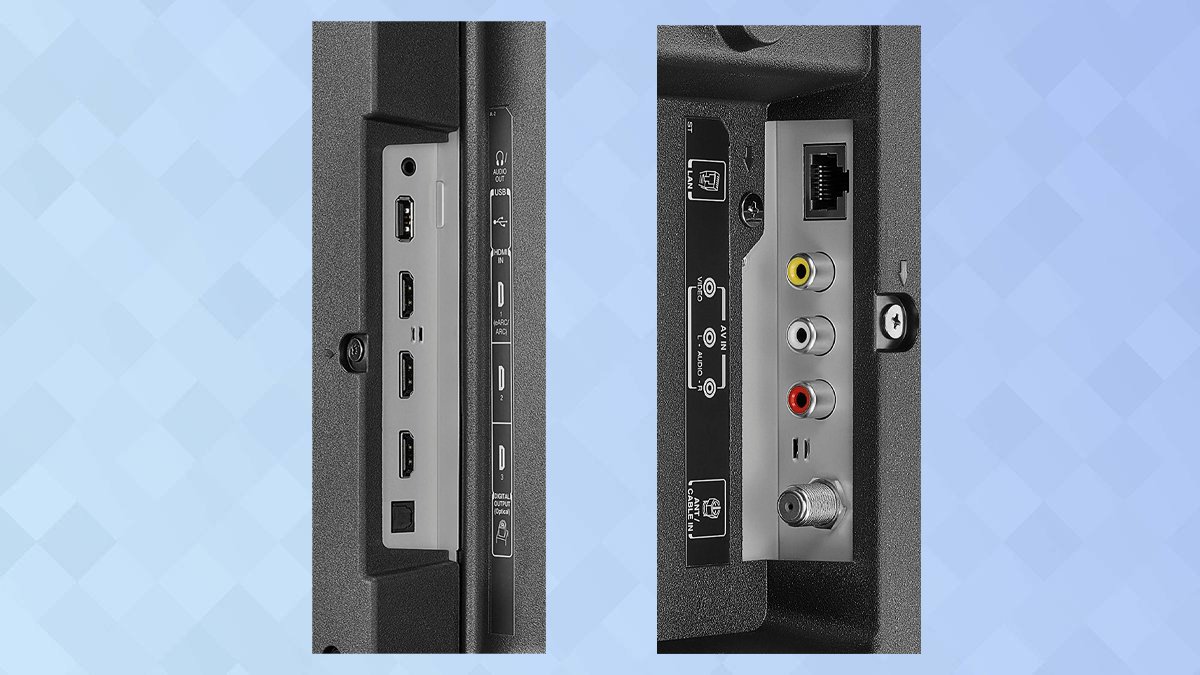
Even the most cutting-edge smart TVs can sometimes feel sluggish, freezing mid-stream or crawling through menus. If you own a Toshiba Fire TV, you might occasionally experience this frustrating slowdown. But don't despair! Optimizing Toshiba Fire TV Performance is often simpler than you think, usually requiring just a few key tweaks and regular digital hygiene.
This guide will walk you through precise, actionable steps to get your Toshiba Fire TV back to its smooth, fast, and responsive best, ensuring your streaming experience is seamless and enjoyable.
At a Glance: Key Steps for a Faster Fire TV
- Restart Regularly: A simple reboot often clears temporary glitches.
- Update Software: Keep your TV's operating system current for bug fixes and performance improvements.
- Manage Apps & Storage: Uninstall unused apps, clear app caches, and force stop background processes.
- Tweak Settings: Disable data monitoring, tracking, autoplay videos, and notifications to free up resources.
- Ensure Good Ventilation: Prevent overheating, which can throttle performance.
- Optimize Your Internet: Troubleshoot Wi-Fi connectivity if streaming is the main issue.
- Factory Reset (Last Resort): For persistent issues, a full reset can restore "out-of-the-box" speed.
The Usual Suspects: Why Your Toshiba Fire TV Might Be Lagging
Before diving into solutions, understanding why your Toshiba Fire TV might be underperforming can help you pinpoint the best course of action. Think of your Fire TV as a mini-computer. Just like a laptop or smartphone, it needs resources to run efficiently. When these resources are stretched thin, performance takes a hit.
Common culprits include:
- Outdated Software: Old firmware can contain bugs or inefficiencies that newer versions have patched.
- Insufficient Storage: Too many apps, games, or downloaded content can hog precious internal storage, slowing everything down.
- Excessive Cached Data: Apps store temporary files (cache) to load faster, but an overloaded cache can become detrimental.
- Background Applications: Apps you're not actively using might still be running in the background, consuming RAM and processor cycles.
- Device Overheating: When internal components get too hot, the system automatically slows down to prevent damage.
- Internet Connection Issues: For streaming-specific lags, your Wi-Fi might be the bottleneck, not the TV itself.
Now, let's tackle these issues head-on.
The Quick Fixes: Immediate Relief for a Sluggish Stream
Sometimes, all your Fire TV needs is a moment to breathe and reset. These first few steps are often the most effective and least invasive.
1. The Classic Restart: Your First Line of Defense
It sounds almost too simple, but a quick restart is surprisingly effective. It clears temporary files, refreshes the operating system, and often resolves minor software glitches that can lead to slowdowns.
How to do it:
- Soft Reset (Recommended First): Hold the Home button on your remote for a few seconds. A menu will pop up. Navigate to Settings > My Fire TV (or Device & Software) > Restart. Confirm your choice.
- Hard Reset (If Soft Reset Fails): Unplug your Toshiba Fire TV's power cord directly from the wall outlet or the back of the TV. Wait a full 60 seconds (this isn't just for dramatic effect; it allows internal components to fully discharge). Then, plug it back in. This completely cuts power, forcing a fresh boot-up and clearing even more transient data.
After restarting, give your TV a minute or two to fully load its system before testing its performance. You might be surprised at the difference!
2. Stay Up-to-Date: Always Check for Software Updates
Just like your phone or computer, your Toshiba Fire TV receives software updates that introduce new features, patch security vulnerabilities, and — crucially for us — improve performance and stability. Running on outdated firmware is a common reason for unexplained slowdowns.
How to check for updates:
- From the Fire TV Home screen, navigate to Settings (the gear icon).
- Select My Fire TV (or Device & Software).
- Choose About.
- Select Check for System Update.
- Your TV will search for available updates. If one is found, follow the on-screen prompts to download and install it. This process might involve your TV restarting several times. Ensure you don't unplug or power off the TV during an update.
It’s always a good idea to ensure your TV is connected to a stable internet connection before checking for or performing updates.
Deep Dive: Managing Apps & Storage Like a Pro
One of the biggest culprits behind a slow Fire TV is often a cluttered digital environment. Too many apps and too much stored data can quickly choke your device's limited resources. This section focuses on reclaiming that vital space and processing power. If you're looking for more general strategies, you might find broader Fire TV maintenance tips helpful.
3. Declutter Your Digital Home: Uninstall Unused Apps
Every app you install takes up valuable storage space and can sometimes run background processes. Think of it like a closet: if it's overflowing, it's hard to find anything, and things just feel heavier. Freeing up internal storage is critical for smooth operation. Amazon recommends keeping at least 30% of your total storage free.
How to uninstall apps:
- Go to Settings from the Home screen.
- Select Applications.
- Choose Manage Installed Applications.
- Scroll through the list and select any app you no longer use (e.g., an old game, a streaming service you tried once).
- Select Uninstall and confirm your choice.
To check your current storage, go to Settings > My Fire TV > About > Storage. Aim to keep that free space indicator well above 30%. Taking charge of managing your Fire TV apps is a direct route to better performance, especially when you also focus on optimizing Fire TV storage.
4. Clear the Cache: Erasing Digital Dust Bunnies
Applications accumulate temporary data, known as cache, to speed up loading times. While helpful in small doses, an excessive build-up of cached data can actually hinder performance, leading to slowdowns and buffering. Regularly clearing this "digital dust" is a simple, yet powerful, maintenance step.
How to clear app cache:
- Go to Settings from the Home screen.
- Select Applications.
- Choose Manage Installed Applications.
- Select an actively used app (e.g., Netflix, YouTube, Spotify).
- Choose Clear Cache.
Important distinction: Clear Cache vs. Clear Data
- Clear Cache: Removes only temporary files. You won't be logged out of the app, and your settings will remain intact. This is the safest and most frequent action.
- Clear Data: Deletes all data associated with the app, including login information, saved settings, and downloaded content. It essentially resets the app to its "freshly installed" state. You'll need to log back in and reconfigure any personalized settings. Use this if clearing the cache doesn't help, or if an app is behaving erratically, but remember the extra setup involved.
Recommendation: Clear the cache for your most frequently used streaming apps monthly, or whenever you notice a slowdown.
5. Stop Background Hogs: Force Stop Unnecessary Apps
Even if you're not actively using an app, it might still be running in the background, consuming valuable RAM (Random Access Memory) and processor cycles. This is particularly common with social media apps or those that send frequent notifications. Forcing these apps to stop ensures more resources are available for what you're actually trying to do.
How to force stop apps:
- Go to Settings from the Home screen.
- Select Applications.
- Choose Manage Installed Applications.
- Select an app that you suspect is running in the background or isn't currently in use.
- Select Force Stop.
This will temporarily halt the app. It might restart on its own later (especially if it's a critical system app or a recently used streaming service), but it provides immediate relief by freeing up resources.
Fine-Tuning Your Fire TV: Optimizing Settings for Peak Performance
Beyond managing apps, there are several system settings you can adjust to reduce background processes and data collection, indirectly boosting your Fire TV's responsiveness. These are often small changes that collectively make a noticeable difference.
6. Silence the Spies: Disable Data Monitoring & Tracking
Your Toshiba Fire TV, like many smart devices, collects data on your usage habits to improve services and serve personalized ads. While this can sometimes be useful, these background processes consume system resources. Disabling them can lead to a snappier experience and enhance your privacy.
How to disable these features:
- From Settings, go to Preferences.
- Select Data Usage Monitoring and toggle it Off. This feature tracks app data consumption and can contribute to buffering.
- Go back to Preferences and select Privacy Settings.
- Toggle Off "Device Usage Data," "Collect App Usage Data," and "Interest-Based Ads."
By turning these off, you reduce the number of background tasks your Fire TV is constantly performing, freeing up its processor and memory.
7. Stop the Show: Turn Off Autoplay for Featured Content
The Fire TV home screen often features rotating banners with video and audio previews of movies, shows, and apps. While visually engaging, these autoplaying elements require your TV's processor to constantly render video and audio, even when you're just browsing. Turning them off can make your home screen feel much more responsive.
How to disable autoplay:
- From Settings, go to Preferences.
- Select Featured Content.
- Toggle Off both "Video Autoplay" and "Audio Autoplay."
You'll notice the home screen immediately feels less busy and more direct, reserving your TV's power for what you actually want to watch.
8. Minimize Distractions: Tame Notifications
App notifications, while sometimes helpful, can interrupt your viewing, consume processor time, and use network resources as the system checks for new alerts. Managing these can streamline your Fire TV's operation.
How to manage notifications:
- From Settings, go to Preferences.
- Select Notification Settings.
- You have two main options here:
- Toggle Do Not Interrupt to On to suppress all notifications globally. This is great for an uninterrupted movie night.
- Alternatively, you can manage notifications for specific apps individually. Review the list of apps and toggle off notifications for those you don't need real-time alerts from.
Reducing notification activity means your TV isn't constantly waking up apps or checking for new pings, leading to a smoother, more focused experience.
Addressing Hardware & Environment: When the Issue Isn't Just Software
Sometimes, the problem isn't hidden in a menu; it's right in front of you (or behind your TV). Physical conditions can significantly impact your Toshiba Fire TV's performance.
9. Keep Cool: Preventing Overheating
Electronic devices, especially those processing high-definition video, generate heat. If this heat isn't dissipated effectively, components like the CPU can get too hot. To prevent damage, the system automatically "throttles" or reduces its operating speed, leading to noticeable lag. An unusually hot back panel is a key indicator.
How to prevent overheating:
- Ensure Proper Ventilation: Check the back and sides of your Toshiba Fire TV for ventilation openings (vents). Make sure they are not blocked by walls, furniture, or dust. Give your TV at least a few inches of clearance on all sides.
- Clean Vents: Over time, dust can accumulate in the vents, acting as an insulating layer. Gently clean them with a soft brush, compressed air, or a vacuum cleaner with a brush attachment.
- Avoid Direct Sunlight: Don't place your TV where it's exposed to direct sunlight for extended periods.
- Dislocate Heat Conductors: Keep other heat-generating devices (like a cable box, receiver, or even a lamp) away from your TV.
- Test for Overheating: If you suspect overheating, turn off your TV for at least 10-15 minutes to allow it to cool down completely. Then, turn it back on and observe if the performance improves. If the lag returns after a period of use, overheating is a strong possibility.
A cool TV is a happy, fast TV.
Conquering Connectivity: Troubleshooting Internet-Related Lag
If your Toshiba Fire TV seems to run fine navigating menus and loading local content, but struggles specifically with online streaming services (buffering, low quality, frequent disconnections), the problem likely lies with your internet connection. Efficient improving your internet speed for streaming is key here.
10. Internet Deep Clean: Router Restart & Wi-Fi Check-up
Your Fire TV is only as good as the internet connection it receives. A weak, unstable, or overloaded Wi-Fi signal will cripple your streaming experience regardless of how optimized your TV is.
Troubleshooting internet lag:
- Power Cycle Your Wi-Fi Router: Unplug your Wi-Fi router (and modem, if separate) from its power source for at least 60 seconds. Then, plug them back in, allowing them to fully boot up (this can take a few minutes). This clears your network's temporary data and can often resolve minor connectivity glitches.
- Disconnect & Reconnect Fire TV: On your Fire TV, go to Settings > Network. Select your Wi-Fi network, then choose Forget Network. After a few seconds, reconnect to your Wi-Fi network and re-enter the password. This forces a fresh connection.
- Move Router Closer (or Fire TV): The closer your Fire TV is to your Wi-Fi router, the stronger and more stable the signal will be. Walls, floors, and other electronic devices can interfere with Wi-Fi signals.
- Verify Wi-Fi is Online: Ensure your internet service is actually working by testing other devices (phone, laptop) on the same Wi-Fi network.
- Dislocate Interfering Devices: Cordless phones, microwaves, and even baby monitors can operate on similar frequencies to Wi-Fi, causing interference. Move them away from your router and Fire TV.
- Share a Mobile Hotspot (Diagnostic): As a quick diagnostic, try connecting your Fire TV to a mobile hotspot from your smartphone (if you have one). If performance dramatically improves, it strongly indicates your home Wi-Fi network or ISP is the issue.
- Contact Your ISP: If none of the above steps resolve your internet streaming issues, contact your Internet Service Provider. There might be an outage, a problem with your line, or an issue with your modem/router.
The Nuclear Option: When All Else Fails, a Factory Reset
If you've tried everything above and your Toshiba Fire TV is still struggling, a factory reset is the final, most drastic step. This action will wipe your device clean, deleting all user-installed apps, settings, login information, and downloaded content, restoring it to its original, "out-of-the-box" state. It's a fresh slate, but requires you to set everything up again. This is where a comprehensive guide to performing a factory reset on your Fire TV truly shines.
11. The Fresh Start: Resetting to Factory Defaults
Use this as a last resort when all other troubleshooting steps have failed to resolve persistent performance issues.
How to perform a factory reset:
- From the Fire TV Home screen, navigate to Settings (the gear icon).
- Select My Fire TV (or Devices and Software).
- Choose Reset to Factory Defaults.
- You will be prompted to confirm your decision. Be absolutely sure, as this action cannot be undone.
- Allow the process to complete. Your Fire TV will restart, and you'll go through the initial setup process as if it were brand new.
After the reset, you'll need to reconnect to Wi-Fi, log into your Amazon account, and reinstall your favorite apps. While a hassle, it often resolves deep-seated software conflicts or corruptions that no other method can fix.
Pro Tips for Sustained Performance
Keeping your Toshiba Fire TV running smoothly isn't a one-time fix; it's an ongoing process. Incorporate these habits for the best long-term performance:
- Regular Maintenance Routine: Make it a habit to restart your Fire TV and clear app caches monthly. Just a few minutes of upkeep can prevent major slowdowns.
- Consider a Wired Connection: If your router is near your TV, an Ethernet cable provides a more stable and often faster connection than Wi-Fi, completely bypassing wireless interference.
- Upgrade Your Wi-Fi Router: If your router is old, upgrading to a newer model with Wi-Fi 5 (802.11ac) or Wi-Fi 6 (802.11ax) standards can dramatically improve wireless performance, especially in busy networks.
- Limit Background Apps: Be mindful of how many apps you install and use. If you're done with an app, force stop it to free up RAM.
- Think About Upgrading (Eventually): If your Toshiba Fire TV is several years old, its hardware might simply be struggling with the demands of newer, more graphically intensive streaming apps and 4K content. While optimization helps, there comes a point where an upgrade might be the most practical solution for future-proofing your streaming. For more insights into the device itself, you might want to Explore Toshiba Fire TV further.
Common Questions About Toshiba Fire TV Performance
How often should I clear app cache on my Fire TV?
It's generally a good idea to clear the cache for your most frequently used streaming apps (like Netflix, Prime Video, YouTube) about once a month, or whenever you notice buffering or sluggishness within those specific apps.
Does using a VPN slow down my Fire TV?
Yes, using a VPN can inherently slow down your internet speed on any device, including your Fire TV. This is because your data is routed through an additional server, adding latency. The degree of slowdown depends on the VPN provider, server distance, and your base internet speed. If you experience lag with a VPN, try connecting to a closer server or temporarily disabling the VPN to see if performance improves.
Is it better to unplug my Fire TV or use the software restart option?
Both are effective. The software restart is quicker and more convenient for minor glitches. Unplugging the TV (a hard reset) completely cuts power, which can clear more stubborn temporary files and fully refresh components. If a soft restart doesn't resolve the issue, always try unplugging for 60 seconds.
When should I consider buying a new Fire TV instead of optimizing my current one?
Consider a new device if your current Toshiba Fire TV is several years old (5+ years), struggles consistently with 4K content, frequently overheats despite good ventilation, or if a factory reset doesn't provide lasting improvement. Newer models come with faster processors, more RAM, and updated Wi-Fi capabilities that can handle modern streaming demands more efficiently.
By systematically working through these steps, you can breathe new life into your Toshiba Fire TV and ensure a smooth, enjoyable streaming experience for years to come. Happy streaming!